Travel Backup Workflow for Photos and Video
A practical guide to the 3-2-1 backup rule for travel creators: SSD selection, cloud sync strategies, and building a redundant workflow that survives theft and failure.
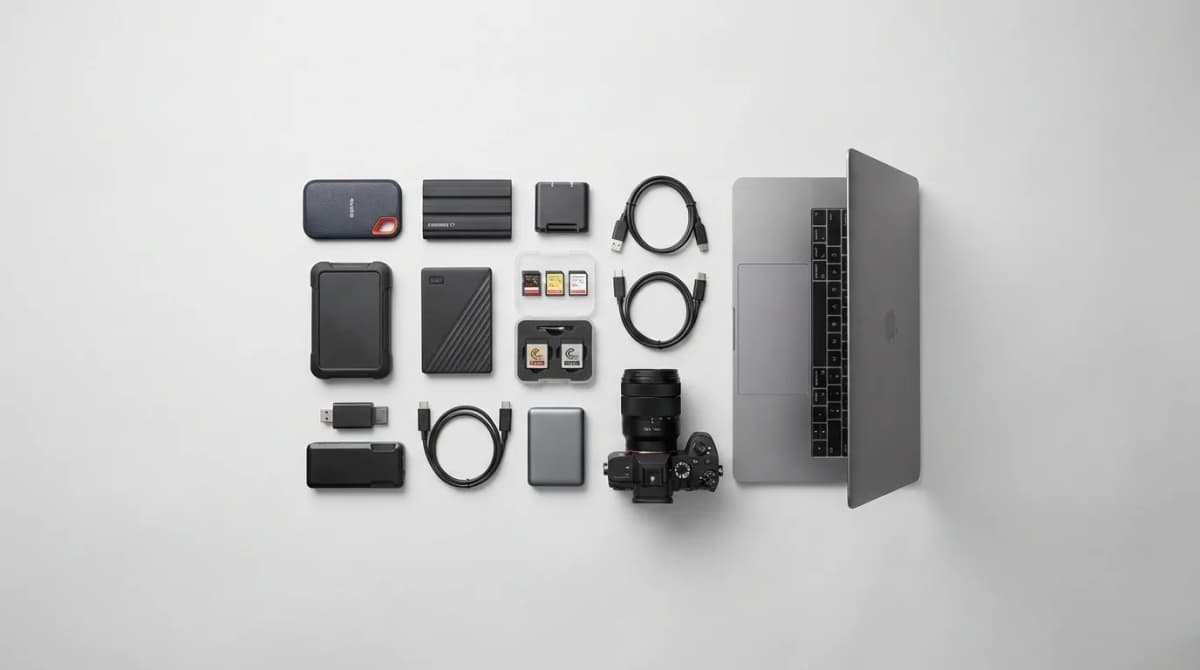
You lose a camera bag in transit. Your laptop gets stolen from a cafe. A card reader fails mid-transfer and corrupts half your shoot. These aren't hypothetical scenarios. They happen, and when they do, your backup strategy is the only thing standing between you and losing weeks of work.
The 3-2-1 rule exists for a reason: three copies of your data, on two different media types, with one copy off-site. For travel creators shooting photos and video, this isn't paranoia. It's the minimum viable approach to protecting your work when you're thousands of miles from home and don't have the safety net of a studio backup system.
Most photographers understand they need backups. Where they fail is in execution. They carry one external drive, dump cards to it nightly, and call it done. That's one copy on one medium in one location. If that drive dies or disappears, everything goes with it.
The 3-2-1 Rule Applied to Travel Workflows
Three copies means your original data plus two backups. For travel work, this typically looks like: footage on camera cards (copy one), transferred to a primary portable SSD (copy two), and duplicated to either a second SSD or cloud storage (copy three).
Two different media types prevents correlated failure. SSDs are reliable, but they share failure modes. A power surge, physical damage, or manufacturing defect could theoretically take out multiple drives. Combining local SSD storage with cloud backup gives you true redundancy across different technologies and infrastructure.
One off-site copy is the hardest part when traveling. In a studio, this might be a drive in a safe deposit box. On the road, cloud storage is your off-site backup. It protects against theft, loss, fire, and every other scenario where your physical gear disappears.
Here's what this looks like in practice: shoot your day, transfer files to a primary SSD at the hotel, immediately copy to a second SSD, and queue uploads to cloud storage overnight on hotel WiFi. Keep the two SSDs in separate bags. If one bag gets stolen, you still have local access to everything. If both bags disappear, your cloud backup survives.
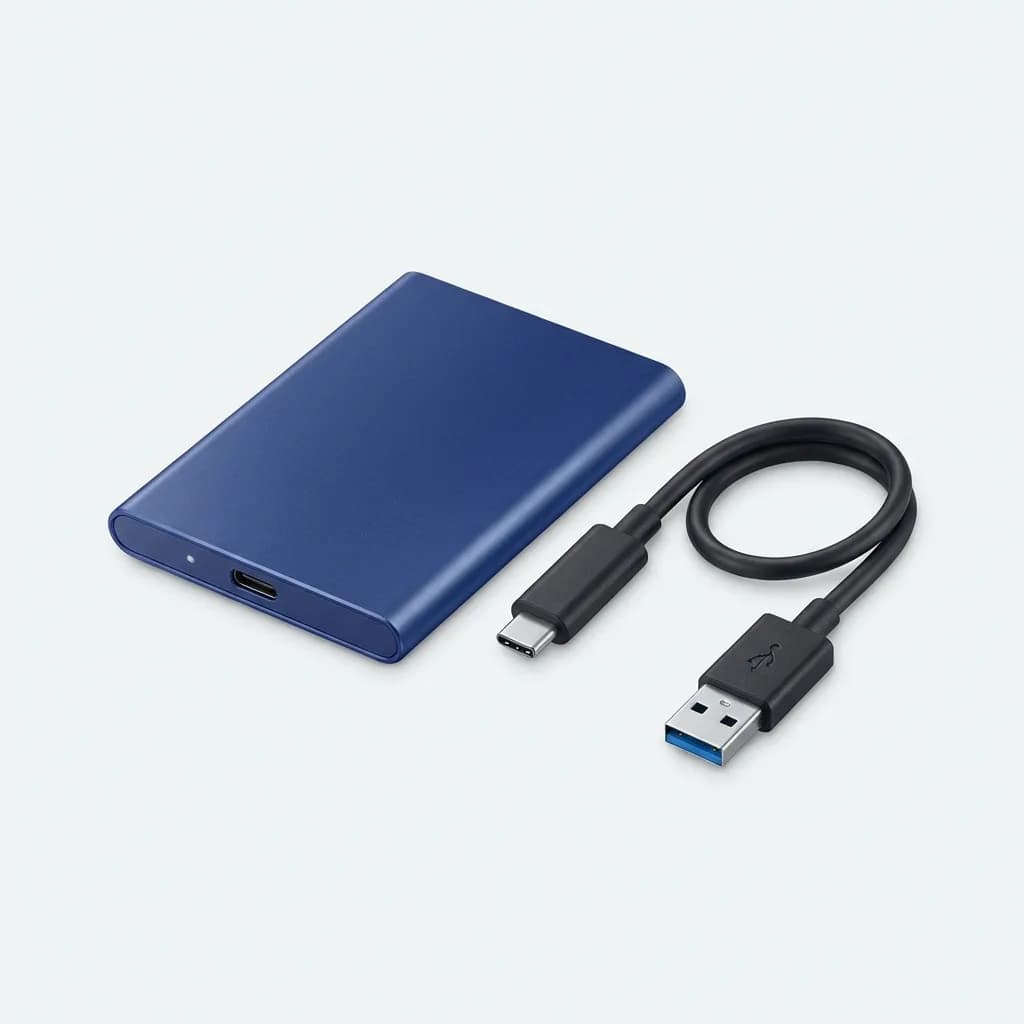
Samsung T7 Portable SSD 2TB
$160
USB 3.2 Gen 2 speeds up to 1050 MB/s, compact aluminum body, password protection and AES 256-bit hardware encryption. Industry standard for travel backup.
The time investment isn't trivial. Transferring 200GB of 4K video to two SSDs and starting a cloud upload might take 30-45 minutes of active work plus hours of background uploading. But that's 30 minutes that protects days or weeks of shooting. The math works.
Choosing Your Primary and Secondary SSDs
Speed matters for your primary drive because you're working directly from it. If you're editing on a laptop while traveling, that SSD needs fast sequential read/write speeds to handle 4K timelines without stuttering. The Samsung T7 or SanDisk Extreme Pro V2 both hit 1000+ MB/s, which is sufficient for most hybrid photo/video workflows.
Capacity depends on your shooting volume and trip duration. A week-long trip shooting hybrid stills and video might generate 300-500GB. If you're shooting high bitrate 4K or RAW stills heavily, double that. The safest approach is to calculate your average daily output, multiply by trip length, and add 50% buffer. For most creators, 2TB handles a two-week trip comfortably.
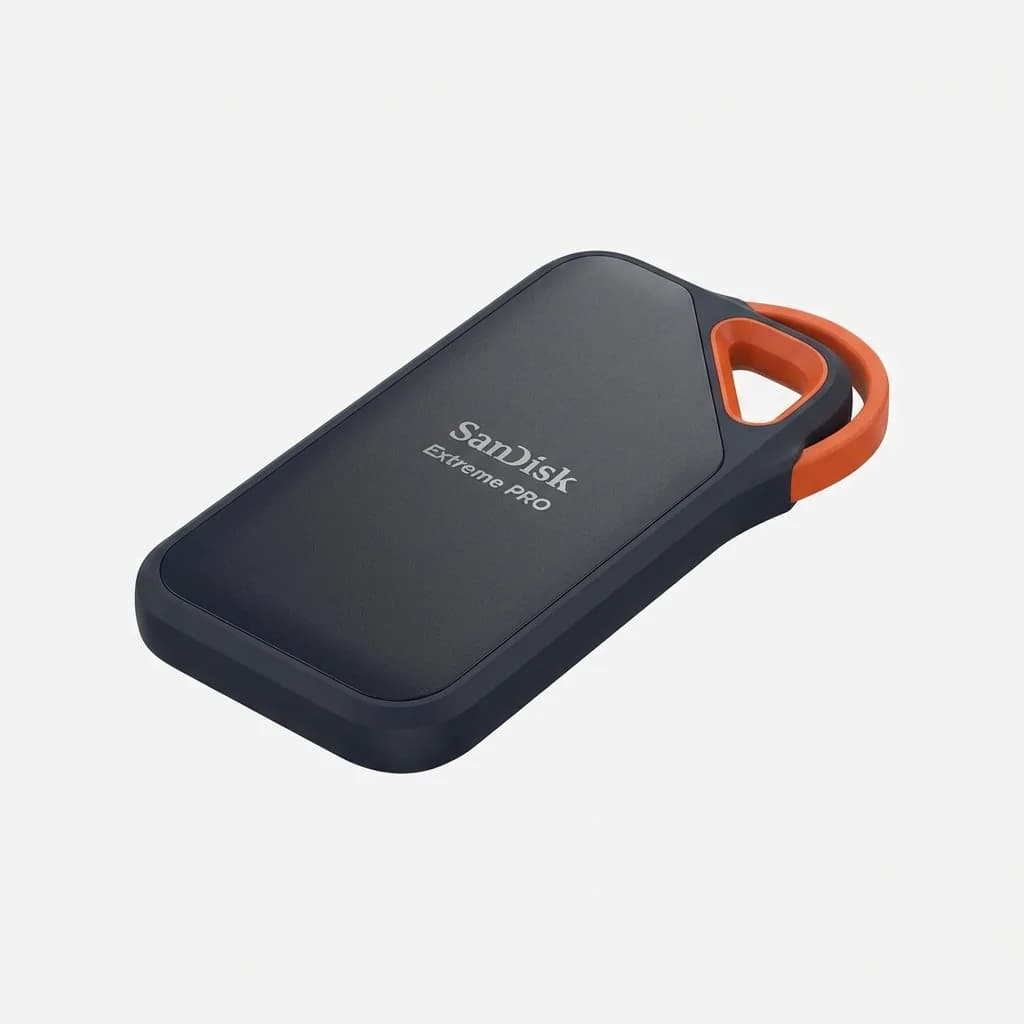
SanDisk Extreme Pro Portable SSD V2 2TB
$180
Up to 2000 MB/s read speeds, IP55 water and dust resistance, forged aluminum chassis with silicon coating. Built for field work.
Your secondary backup drive can be slower and cheaper. Since you're only using it as redundancy, not as a working drive, speeds around 500-600 MB/s are fine. The Crucial X6 or Western Digital My Passport SSD both offer good value in the 2TB range without the premium pricing of flagship models.
The key distinction: your primary SSD should prioritize speed and durability since you're accessing it constantly. Your secondary backup prioritizes capacity and cost efficiency since it's insurance you hope to never need.
Avoid spinning hard drives for travel backup. They're more fragile, slower, and only marginally cheaper than SSDs at smaller capacities. The cost savings aren't worth the failure risk when you're bouncing between airports and hotel rooms.
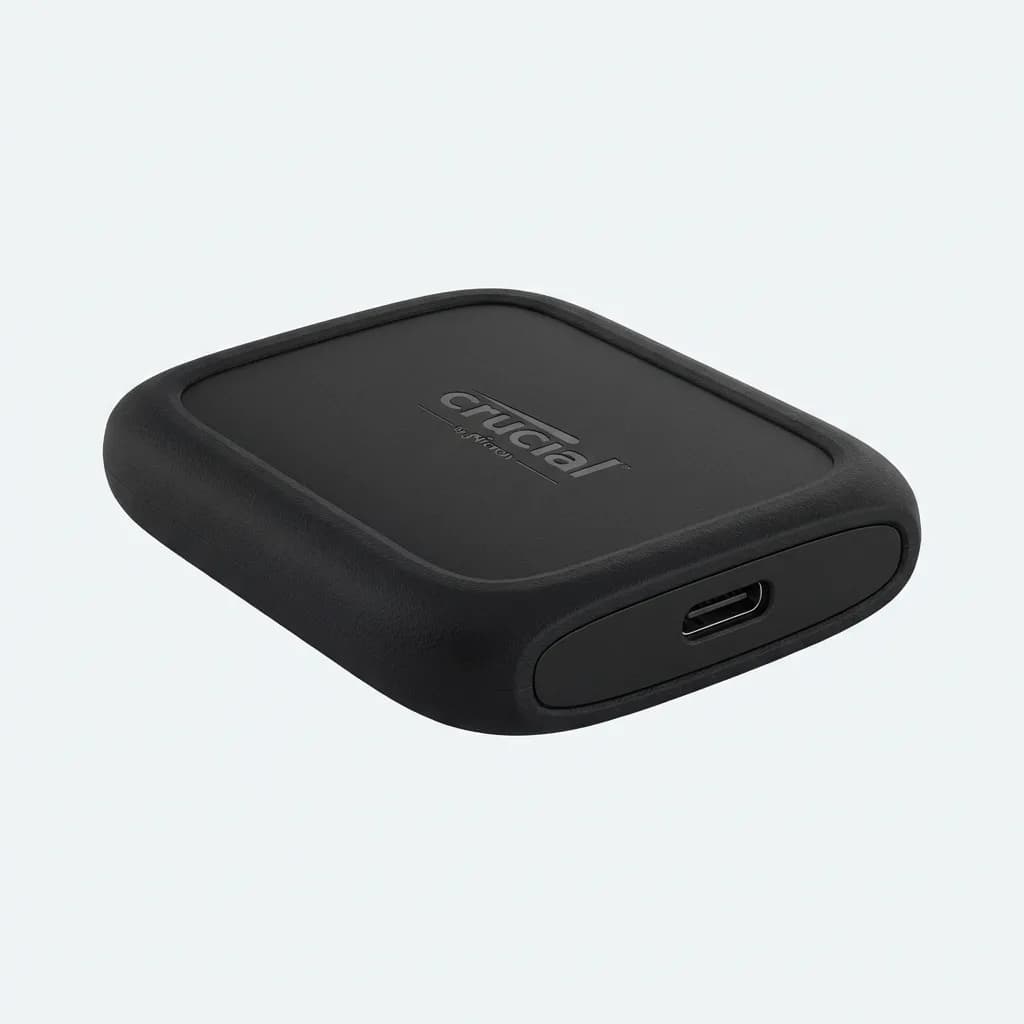
Crucial X6 Portable SSD 2TB
$130
Up to 800 MB/s speeds, drop-proof up to 6.5 feet, USB-C 3.2 Gen 2 interface. Excellent value for secondary backup storage.
Cloud Backup Strategy for Unreliable Connections
Hotel WiFi is terrible. Airport WiFi is worse. You're not uploading 500GB overnight on a 5 Mbps connection with packet loss. The trick is selective cloud backup combined with overnight batch uploads and realistic expectations about what actually makes it to the cloud each night.
Start by identifying critical footage. Not everything needs immediate cloud backup. B-roll, duplicates, test shots - these can wait until you're home. But your A-roll, key interview footage, and unrepeatable moments need priority. Tag or organize these files into a separate folder that uploads first.
Backblaze B2, Dropbox, and Google Drive all work, but they optimize for different use cases. Backblaze offers unlimited backup for $9/month but requires their desktop app and backs up your entire system, which isn't ideal for targeted travel uploads. Dropbox and Google Drive let you selectively sync specific folders, which gives you more control over what uploads when bandwidth is limited.
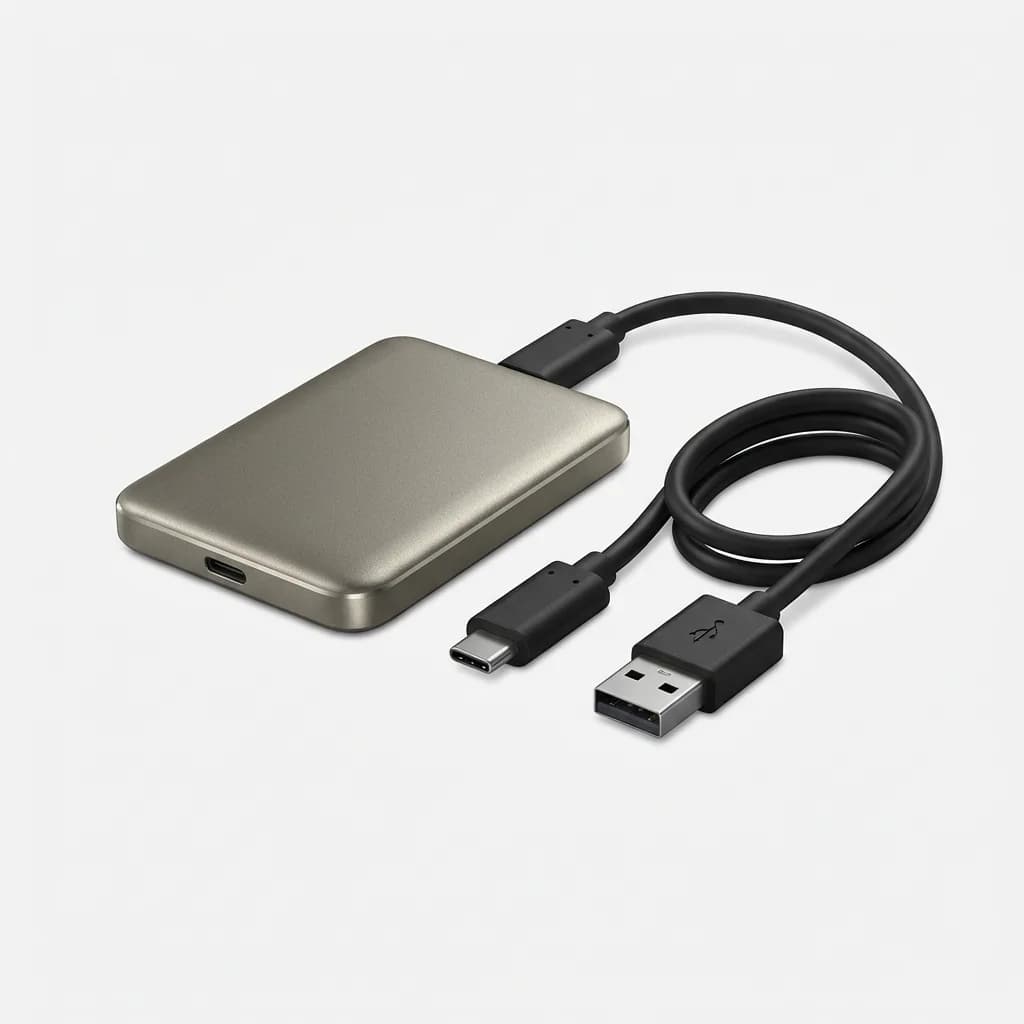
WD My Passport SSD 2TB
$140
Up to 1050 MB/s speeds, shock and vibration resistant, USB-C and USB-A compatible. Reliable secondary backup at competitive pricing.
Set uploads to run overnight while you sleep. Most cloud services let you throttle bandwidth or schedule sync times. Configure this before your trip so you're not troubleshooting settings on terrible hotel WiFi at midnight.
Compression helps but has limits. JPEG photos compress well. RAW files and video footage barely compress at all because they're already efficiently encoded. Don't expect to magically shrink 200GB of 4K H.265 footage by compressing it. The gains are marginal.
The realistic expectation: on decent hotel WiFi (20-50 Mbps upload), you might push 50-100GB overnight. On terrible WiFi, maybe 10-20GB. Plan your critical file selection accordingly. Everything else can sync when you get home or hit a cafe with fiber internet.
What Makes a Backup Workflow Actually Work
Discipline beats technology. The best backup system in the world fails if you don't execute it nightly. After a 12-hour shooting day, the last thing you want to do is spend 30 minutes managing file transfers. This is where the workflow breaks down for most people.
Automate what you can. Use scripts or backup software that initiates transfers with one click. Many backup tools support automatic duplication to multiple destinations. Set up your SSD backup to simultaneously copy to both drives instead of doing sequential manual transfers.
Physical separation prevents correlated loss. Keep your two backup SSDs in different bags. Primary SSD in your camera bag, secondary in your personal bag or daypack. If one bag gets stolen or lost, the other survives. This sounds obvious, but many photographers keep all their drives together in the same camera bag.
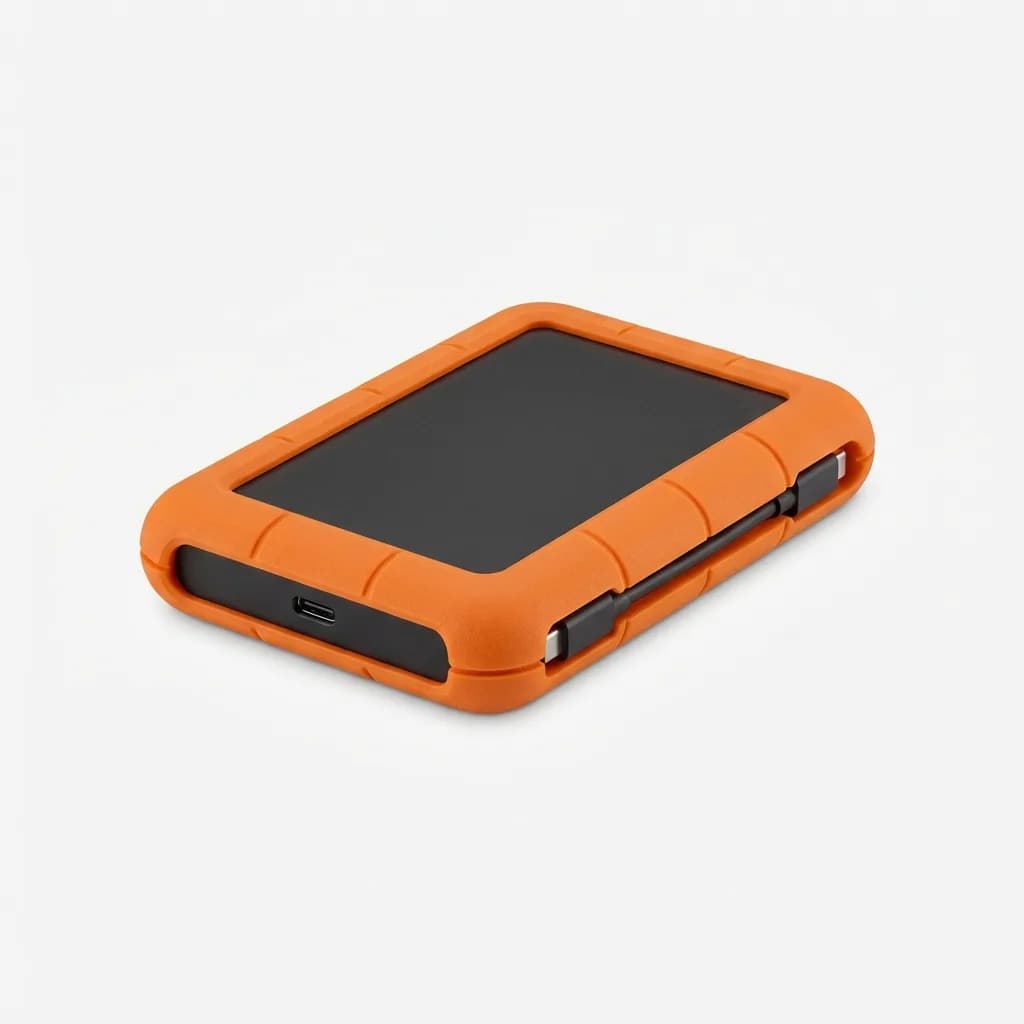
LaCie Rugged SSD Pro 2TB
$350
Thunderbolt 3 speeds up to 2800 MB/s, IP67 water/dust resistance, 3-meter drop protection. Extreme durability for harsh environments.
Verify your backups. A corrupted backup is worse than no backup because it gives you false confidence. After transfers complete, spot-check a few files on each drive to confirm they open correctly. This takes two minutes and catches transfer errors before you format cards.
Card management prevents catastrophic mistakes. Don't format cards until files are backed up to at least two locations and verified. Use a simple system: cards facing up in the case are empty and ready to shoot, cards facing down are full and need backup. Never trust memory when you're jet-lagged and working on four hours of sleep.
The workflow also needs to handle real-world chaos. You'll have nights where you're too exhausted to complete the full backup routine, or where WiFi is so bad that cloud uploads are impossible. Build buffer into your card capacity. If you typically shoot 64GB per day, carry 256GB of cards so you have three days of runway if backup becomes impossible. This prevents the nightmare scenario of having to format unsynced cards to keep shooting.
Common Mistakes That Compromise Your Backup
Relying solely on camera dual card slots is not a backup. Yes, shooting to two cards simultaneously gives you redundancy against card failure. But both cards are in the same camera, vulnerable to the same theft, loss, or damage. Dual slots protect against card failure. They don't protect against camera failure or loss.
Deleting files from cards immediately after transfer to save card space removes your third copy. Cards are cheap. A 128GB SD card costs $20. Keeping footage on cards until you return home and verify cloud backups gives you an extra layer of redundancy for minimal cost.
Using unreliable USB hubs or card readers introduces corruption risk. This is where many transfers fail. A flaky USB-C hub loses connection mid-transfer, corrupts the file, and you don't realize until later. Use quality card readers from SanDisk, ProGrade, or Sony. Avoid cheap multi-card readers that try to do everything and do none of it well.
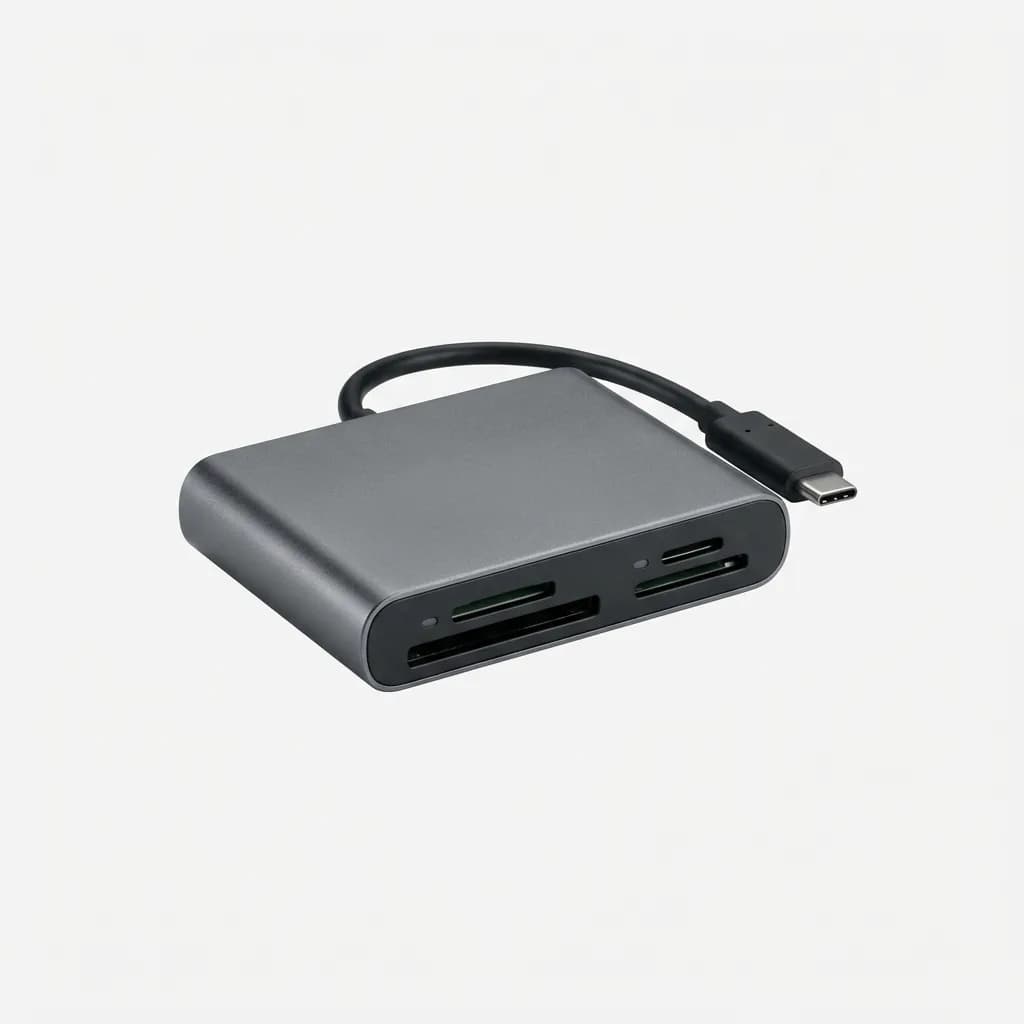
ProGrade Digital CFexpress & SD Card Reader
$50
Dual-slot reader for CFexpress Type B and UHS-II SD cards, USB 3.2 Gen 2 interface, robust aluminum construction. Professional reliability.
Not testing your workflow before departure is amateur hour. Run through your complete backup routine at home. Transfer files to both SSDs, verify uploads to cloud storage, and confirm you can access everything. Find the workflow problems when you have time to fix them, not when you're in a hotel room in Bangkok at 2 AM with a morning flight.
Building Redundancy Into Your Kit
Carry redundant cables and adapters. USB-C to USB-A adapters, extra USB-C cables, and a backup card reader weigh almost nothing but prevent complete workflow failure if your primary reader dies. These aren't expensive items. Spend $30 on redundancy and avoid the panic of searching foreign electronics markets for compatible cables.
Power delivery matters for high-speed transfers. Some USB-C ports on laptops don't deliver enough power for fast SSD operation, throttling transfer speeds. If you're seeing slower-than-spec performance, try a different port or use a powered USB-C hub.
Consider a portable WiFi hotspot for critical cloud backup. Hotel WiFi is unreliable. A local SIM card in a travel router or hotspot gives you controlled, consistent connectivity for uploads. In many countries, prepaid data is cheap enough that spending $20-30 on a multi-gigabyte plan makes sense for backup peace of mind.
The workflow also needs to survive equipment failure. What happens if your laptop dies? Can you still transfer files from cards to SSDs? Some card readers support direct SSD copying without a computer, which gives you a backup transfer method if your laptop fails.
Is This Workflow Overkill?
For a weekend trip shooting casual content, probably. For a two-week assignment shooting client work or unrepeatable travel footage, absolutely not. The cost of the backup system (two SSDs plus cloud storage) is $300-400. The cost of losing irreplaceable footage is infinite.
The mental ROI matters too. Knowing your work is protected across multiple redundant systems lets you focus on creating instead of worrying about data loss. That peace of mind is worth the workflow investment.
Scale the system to your needs. Shooting less data? One 1TB SSD plus cloud backup might suffice. Shooting high-volume commercial work? Add a third SSD and upgrade to faster cloud infrastructure. The principles stay the same regardless of scale.
The truth is that most creators learn this lesson the hard way. They lose footage once, swear it'll never happen again, and finally implement proper backup discipline. You can skip that painful education by building the workflow correctly from the start. Three copies, two media types, one off-site. Everything else is details.
Backblaze Personal Backup
$9/month
Unlimited cloud backup for one computer, automatic continuous backup, strong encryption. Simple set-and-forget solution for comprehensive protection.
The workflow isn't complicated. It just requires discipline and the right tools. Get two good SSDs, set up cloud backup, and execute the routine every single night without exception. Your future self will thank you when everything else goes wrong and your backups save the project.
The Weekly Dispatch
Enjoying this article?
Subscribe and get our best gear picks delivered every Sunday morning.
Related Stories
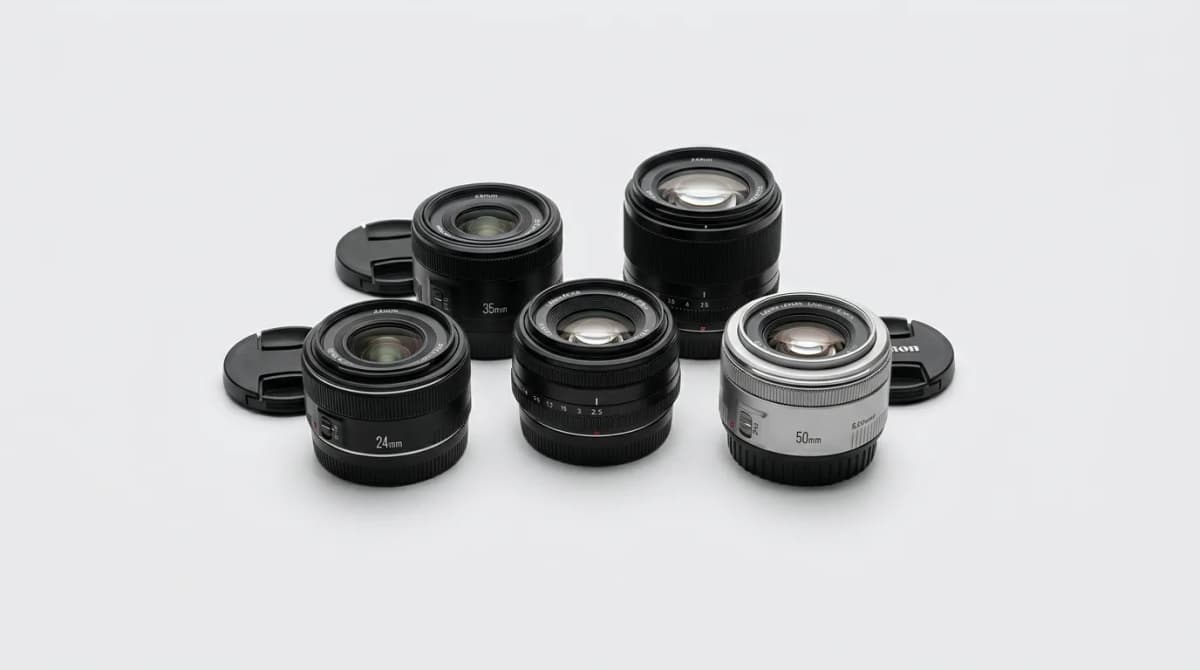
Small Prime Lenses for Travel: Why They Beat Zooms
Small prime lenses deliver sharper images and better low-light performance than zoom lenses while saving critical weight in your travel kit.
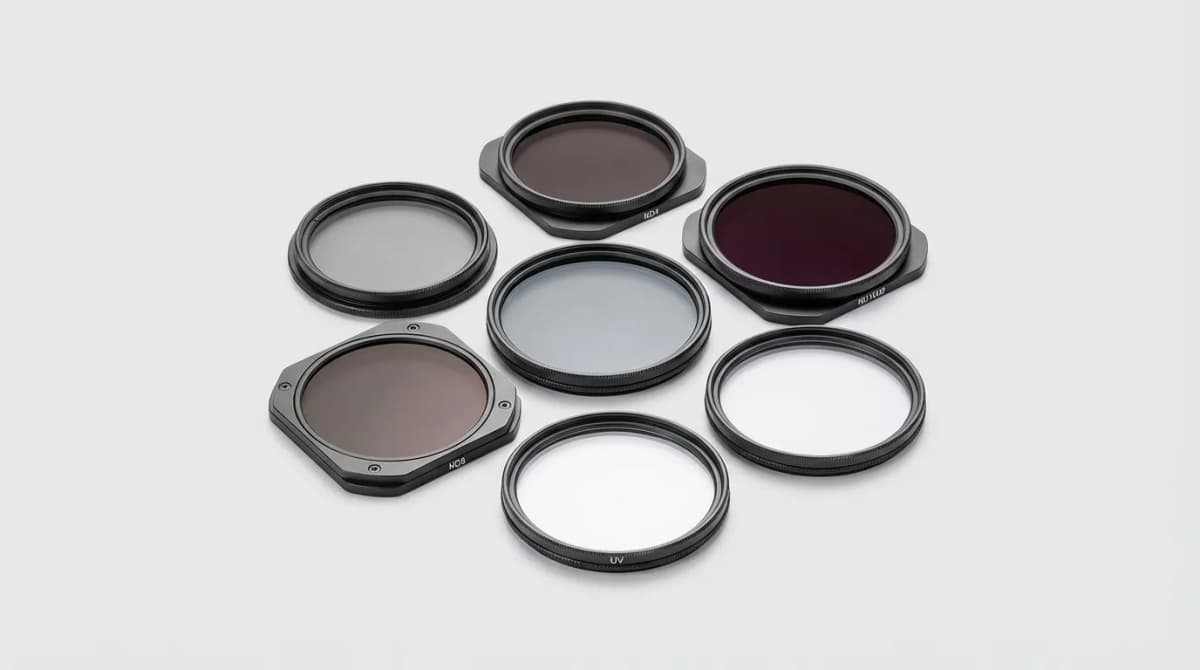
Best Lens Filters for Travel Photography
Skip the UV filter debate. These are the lens filters that actually matter for travel photography - polarizers, ND filters, and when each one earns its place in your bag.
One Camera One Lens Travel Challenge: How to Choose
Limiting yourself to one lens forces better composition and lighter packing. Here's how to pick the right focal length for your next trip.