Must-Have Laptop Accessories for Remote Work
Transform your laptop into a proper workstation with the right accessories. Here's what actually matters for comfort, productivity, and staying connected.
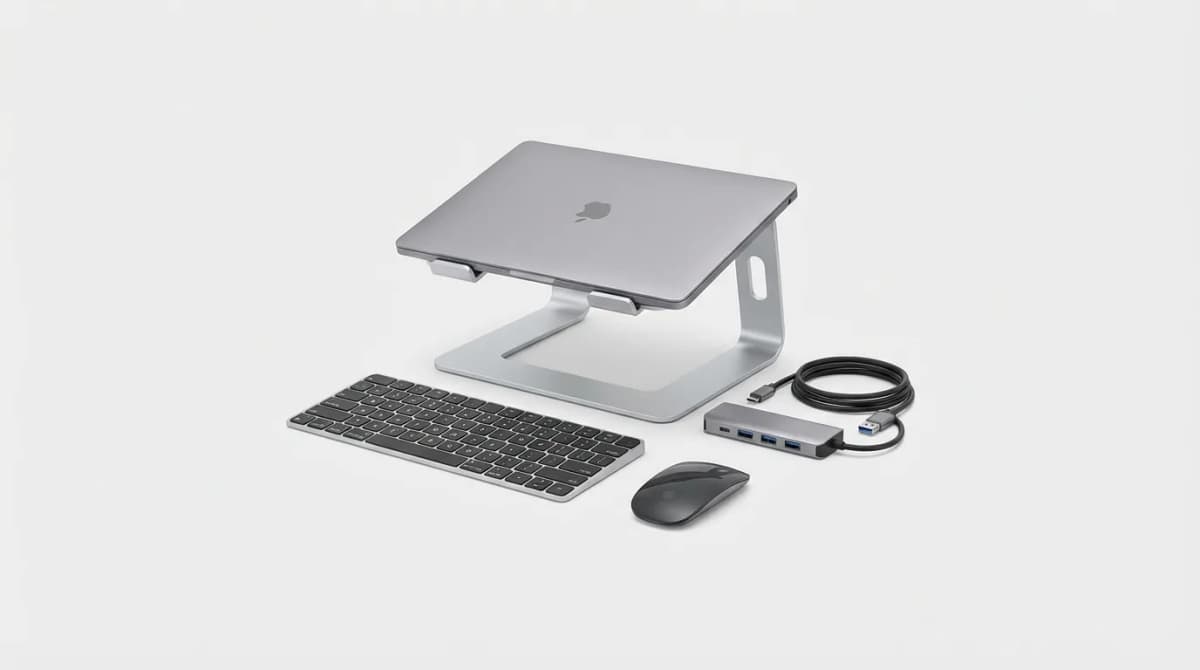
Your laptop handles the computing. Everything else determines whether you finish the day energized or aching.
Most remote workers start with just the laptop. Screen at eye level becomes neck down at desk level. The built-in keyboard forces your wrists into angles they were never designed to hold. Within weeks, discomfort becomes the norm. Within months, you're shopping for ergonomic solutions you should have started with.
We've tested dozens of laptop accessories across price ranges and use cases. Some deliver immediate impact. Others solve problems you didn't know you had. Here's what actually matters.
Laptop Stands That Fix Your Posture
The single biggest upgrade most remote workers can make costs $30 and takes 60 seconds to set up.
A good laptop stand brings your screen to eye level. This keeps your neck neutral instead of craned forward. The difference isn't subtle. After one full workday at proper height, you'll notice the absence of that familiar neck tension.
Height adjustability matters more than you'd think. Your ideal screen position changes based on your chair, desk height, and whether you're sitting or standing. Fixed-height stands work until your setup changes. Then they're wrong forever.
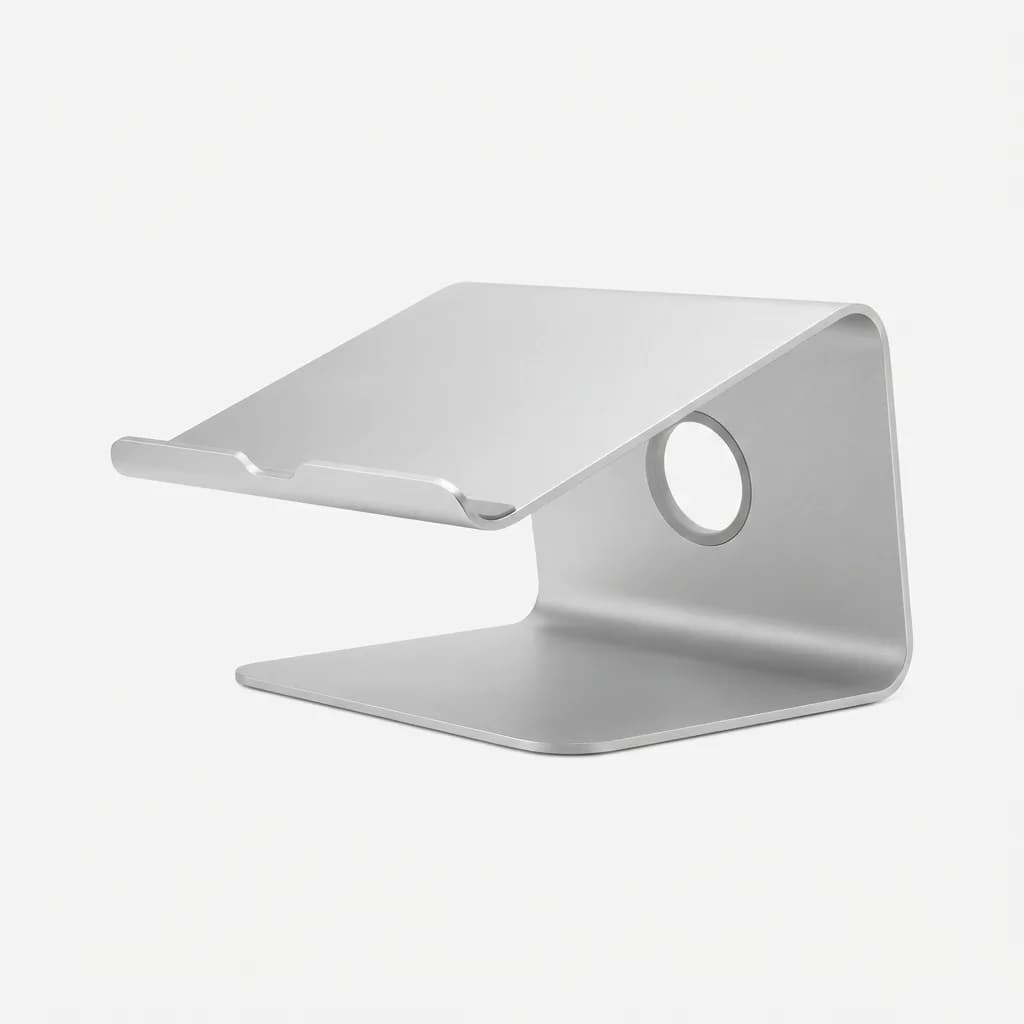
Rain Design mStand Laptop Stand
$50
Aluminum construction with single-piece design raises MacBooks and laptops 5.9 inches. Angled for better airflow and cable management underneath.
Material quality separates the bargain options from the ones that last. Aluminum stands dissipate heat better than plastic. They don't flex under the weight of a 15-inch laptop. They look like they belong on your desk instead of screaming "I bought this on impulse."
Portability trades off with stability. Folding stands fit in a backpack but wobble when you type with force. Solid stands stay put but live on your desk permanently. Match this to how often you move your setup.
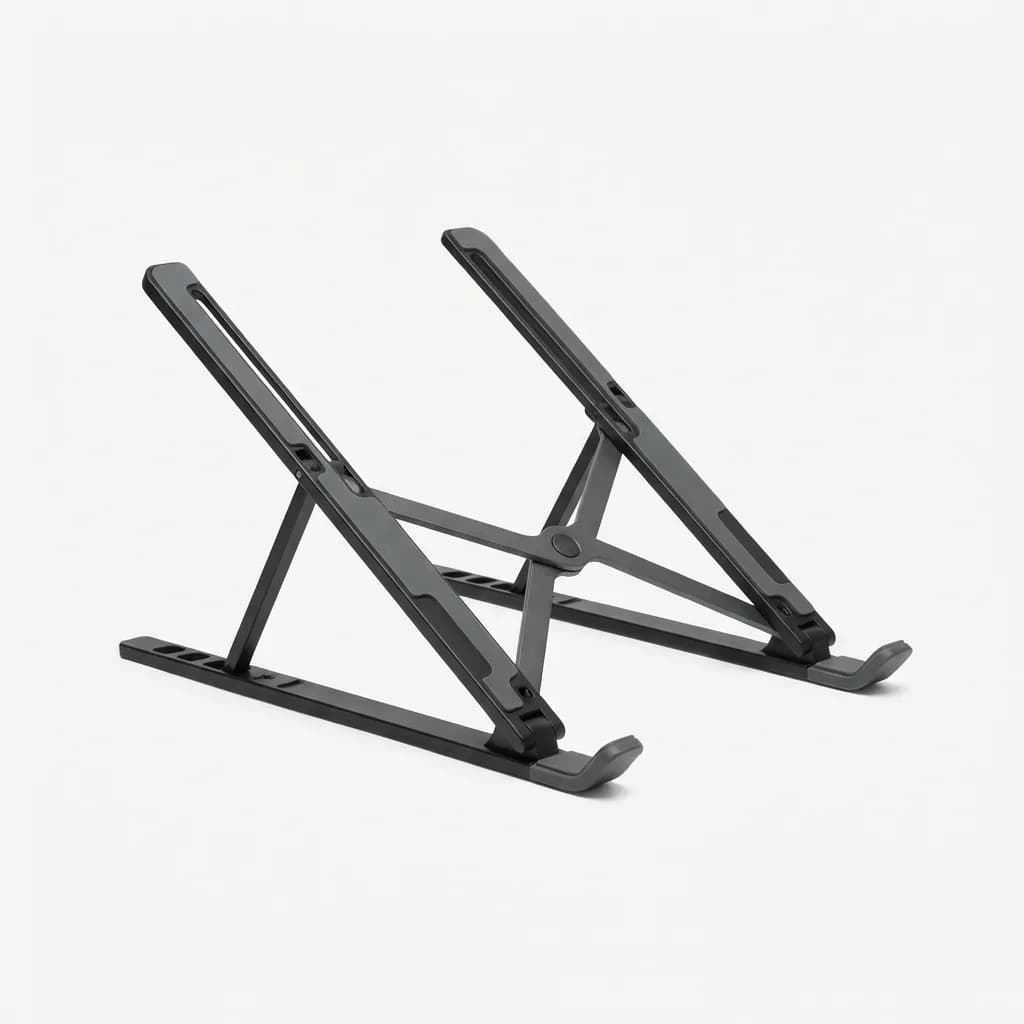
Roost Laptop Stand
$90
Collapsible stand weighs 5.9 oz and fits in any bag. Adjustable height from 8-12 inches with custom-molded clamps.
The biggest mistake is buying a stand and continuing to use your laptop keyboard. You've raised the screen but now your hands are too high. This is why stands and external keyboards go together.
Wireless Keyboards That Don't Compromise
Laptop keyboards get the job done until you compare them to anything designed for full-time typing.
Key travel makes the difference. Laptop keys move 1-1.5mm. Mechanical keyboards offer 3-4mm. That extra distance gives your fingers clear tactile feedback. You know when you've pressed a key without bottoming out on every stroke.
Noise level varies wildly between switch types. Cherry MX Blue switches click loud enough to annoy anyone in earshot. Brown switches offer tactile feedback without the noise. Red switches stay nearly silent. This matters if you take video calls while others are home.
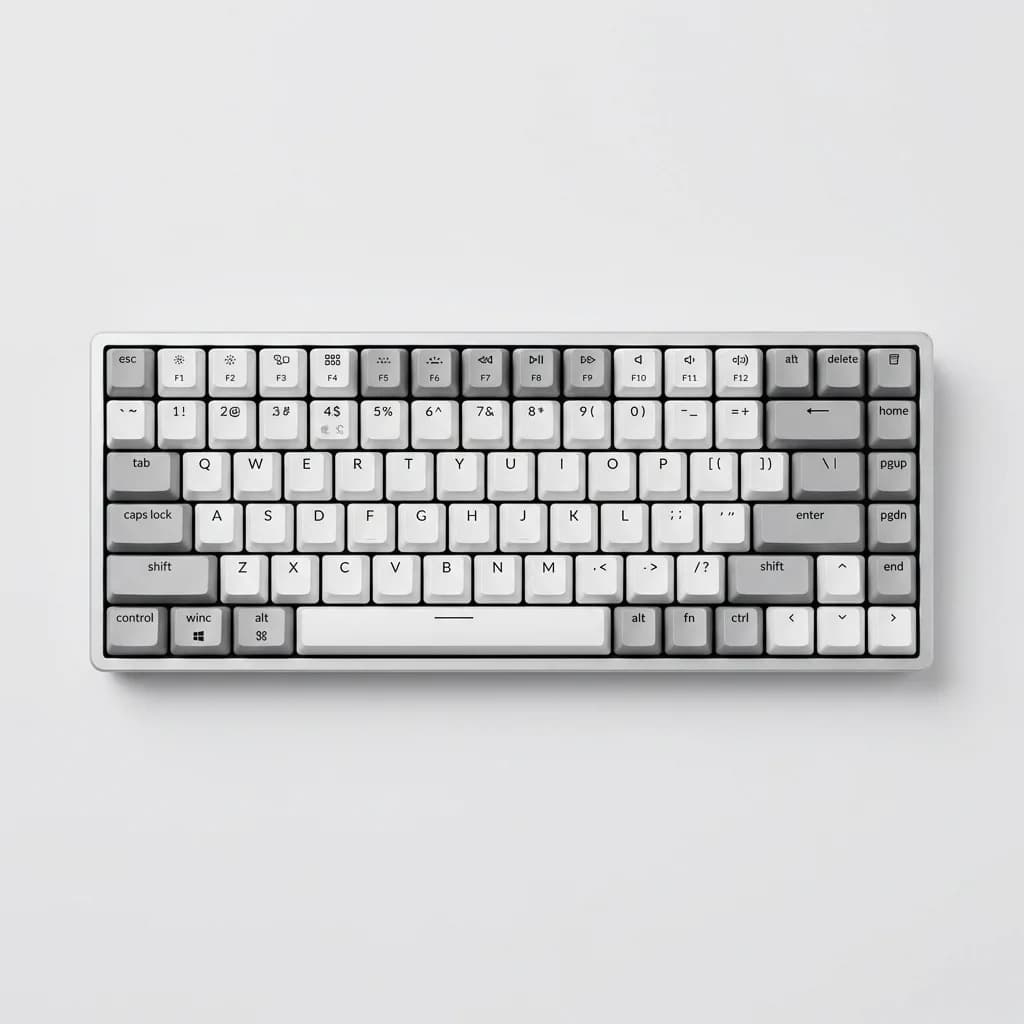
Keychron K2 Wireless Mechanical Keyboard
$79
75% layout with Gateron mechanical switches, 4000mAh battery lasting weeks between charges. Mac and Windows compatible.
Layout matters more than aesthetics. Full-size keyboards include the numpad, which makes spreadsheet work faster but takes up more desk space. Tenkeyless (TKL) drops the numpad for a more compact footprint. 75% and 65% layouts condense further while keeping arrow keys and function rows.
Battery life on wireless keyboards ranges from days to months. Backlit models drain faster. Mechanical switches use more power than membrane. Budget for weekly charging with RGB lighting, monthly with basic backlit, and quarterly for non-backlit models.
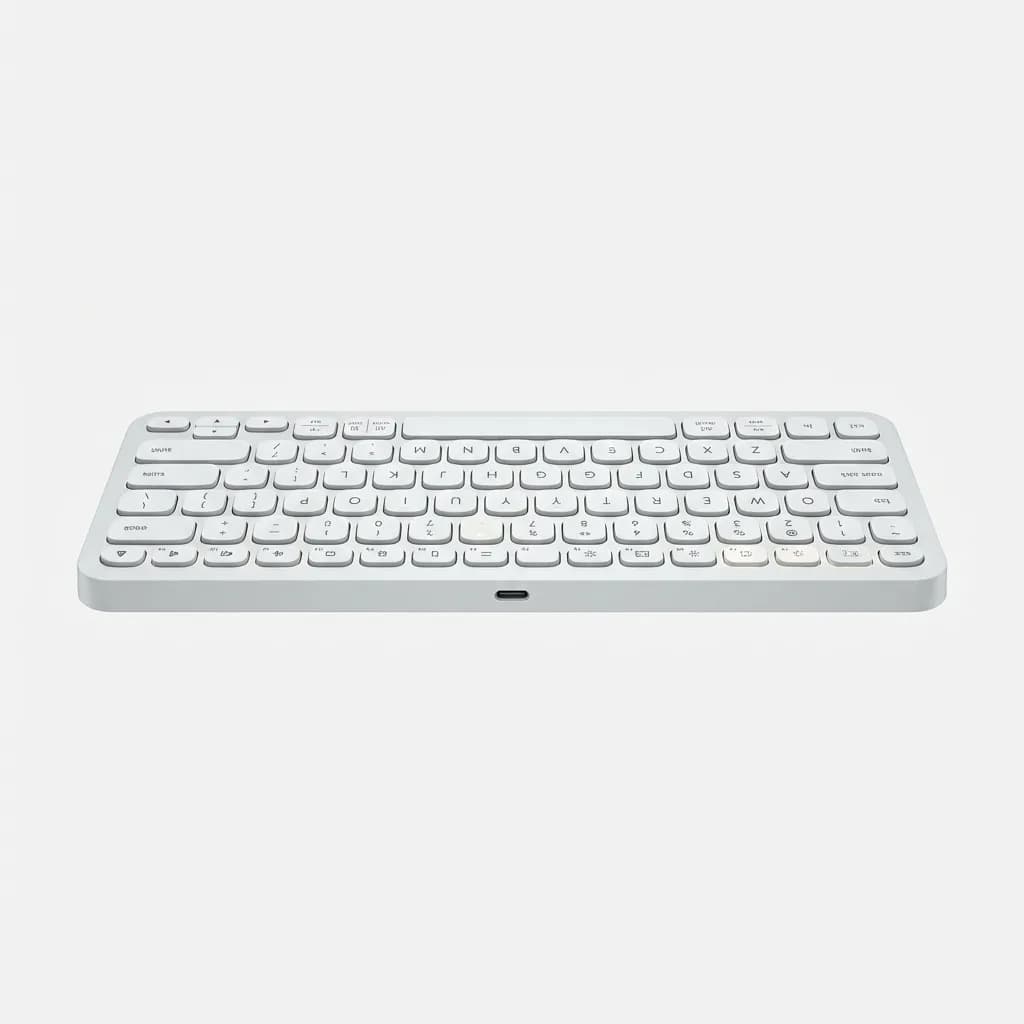
Logitech MX Keys
$110
Low-profile wireless keyboard with smart backlighting, USB-C rechargeable, multi-device switching for up to three computers.
The split between Bluetooth and dedicated wireless receivers determines connection reliability. Bluetooth works with any device but can lag by milliseconds. Proprietary receivers like Logitech's Unifying add a USB dongle but guarantee zero latency.
Wireless Mice Worth the Investment
Laptop trackpads excel at gestures but fail at precision work.
DPI settings control cursor sensitivity. Higher DPI means less physical mouse movement for the same screen distance. Most wireless mice offer 800-1600 DPI, which suits general work. Design and creative work benefits from 2000+ DPI with on-the-fly adjustment.
Ergonomics become critical during long sessions. Standard mice force your hand into pronation (palm down). Vertical mice rotate your grip into a handshake position that reduces forearm strain. The learning curve lasts about a week. The comfort gain lasts as long as you use it.
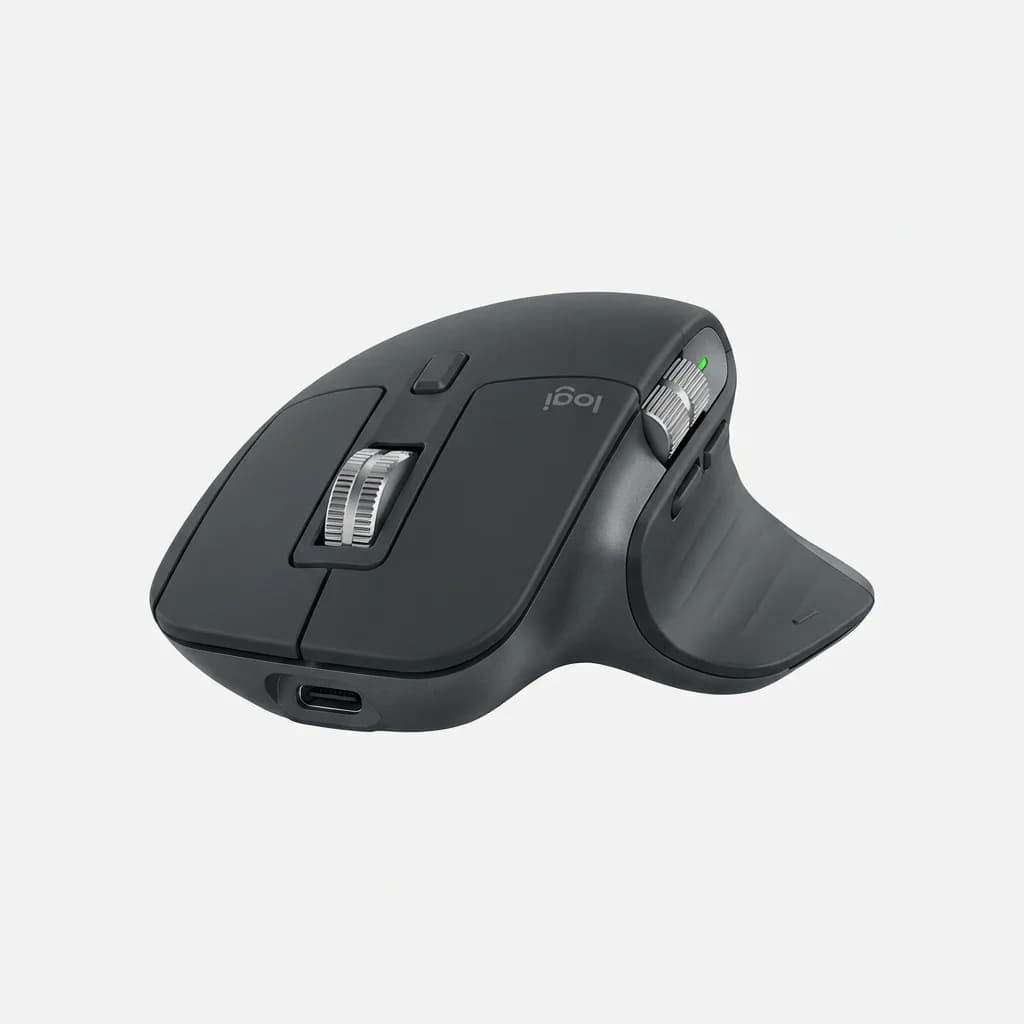
Logitech MX Master 3S
$100
Premium wireless mouse with 8000 DPI sensor, electromagnetic scrolling, and multi-device connectivity. USB-C rechargeable with 70-day battery life.
Button customization extends functionality. Basic mice offer left, right, and scroll wheel. Productivity mice add side buttons for back/forward navigation, application switching, and custom macros. Whether you use these depends on your workflow, but having the option beats not having it.
Battery life ranges from weeks to months. Rechargeable models eliminate disposable batteries but need charging every few weeks. AA battery models last 6-12 months but add weight. Both work fine, the choice is preference.
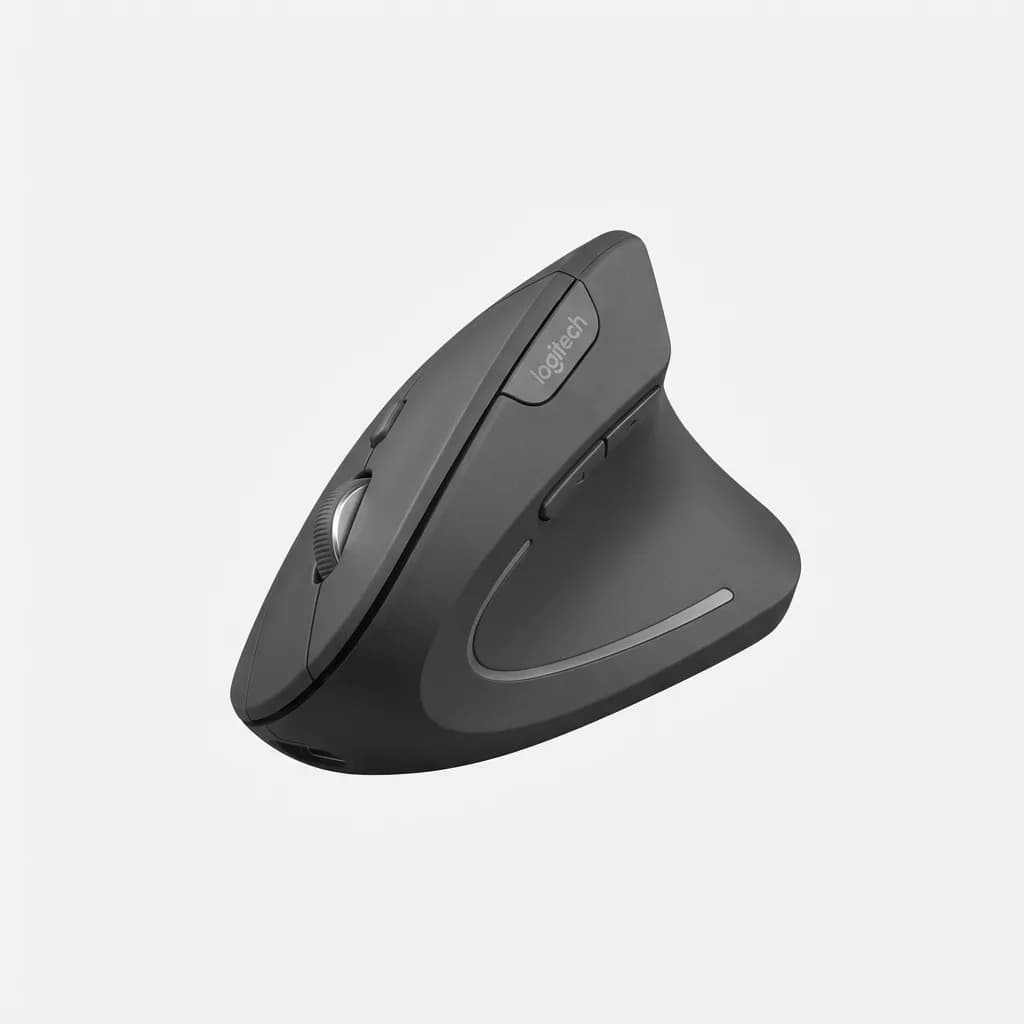
Logitech MX Vertical
$90
Ergonomic vertical mouse with 57-degree angle reduces wrist pressure. 4000 DPI sensor, 4-month battery life on single charge.
USB Hubs and Docking Stations
Modern laptops trade ports for thinness. Then you need to connect a monitor, keyboard, mouse, external drive, and charge your phone.
USB-C hubs solve the immediate problem with adapters for HDMI, USB-A, SD cards, and ethernet. Basic hubs cost $30-50 and handle most connection needs. They're portable enough to throw in a laptop bag.
Power delivery matters if you want one cable to rule them all. Hubs with 85W+ power delivery charge your laptop while providing peripheral connections. This reduces cable clutter from two plugs to one. Check your laptop's charging requirements - some need 100W, others work fine with 65W.
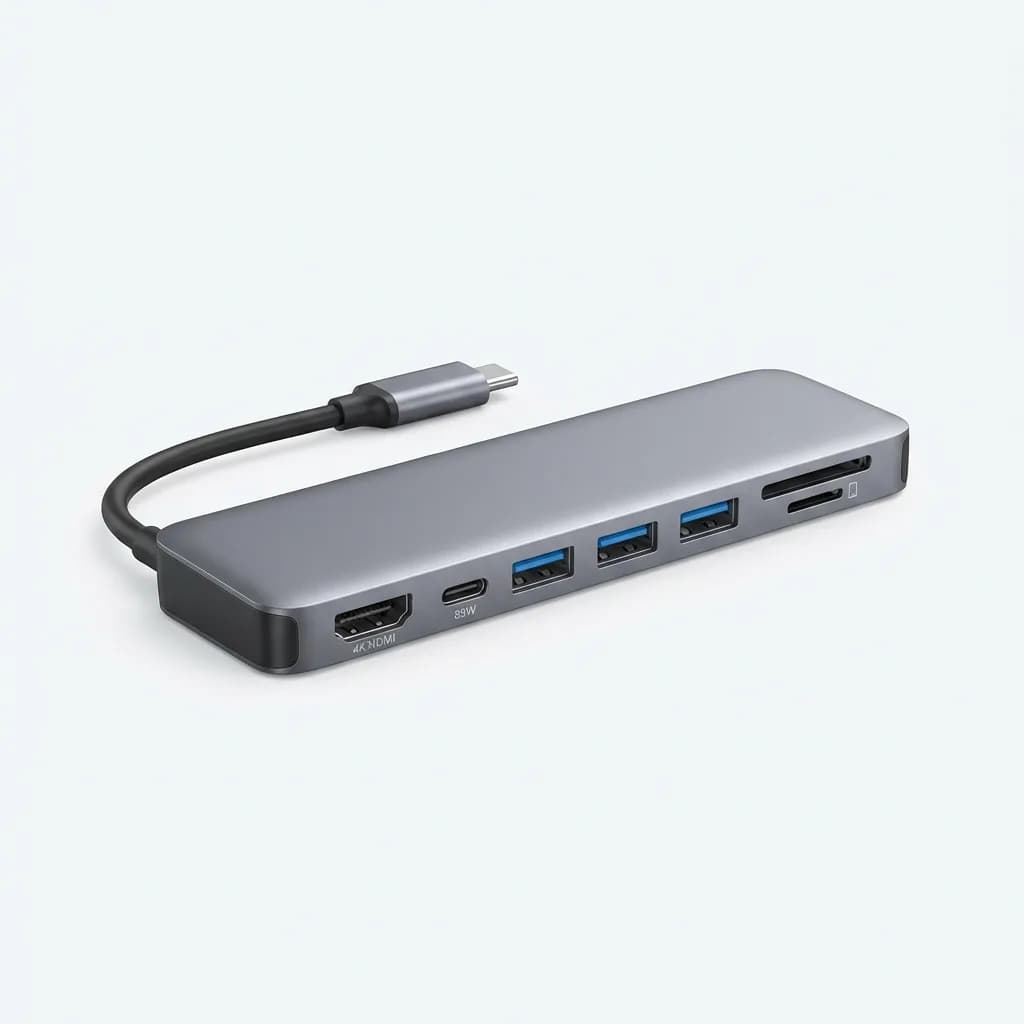
Anker 7-in-1 USB-C Hub
$50
Compact hub with 4K HDMI, 85W power delivery, three USB 3.0 ports, SD/microSD readers. Aluminum construction matches MacBooks.
Docking stations take this further with permanent desk setups. They sit on your desk with all peripherals connected. You plug in one cable and your laptop connects to everything at once. This makes sense if you regularly undock to move around or travel.
Display support varies significantly. Entry-level hubs support one 4K display at 30Hz. Better hubs handle 4K at 60Hz or dual 1080p monitors. High-end Thunderbolt docks support dual 4K at 60Hz or even single 5K displays.
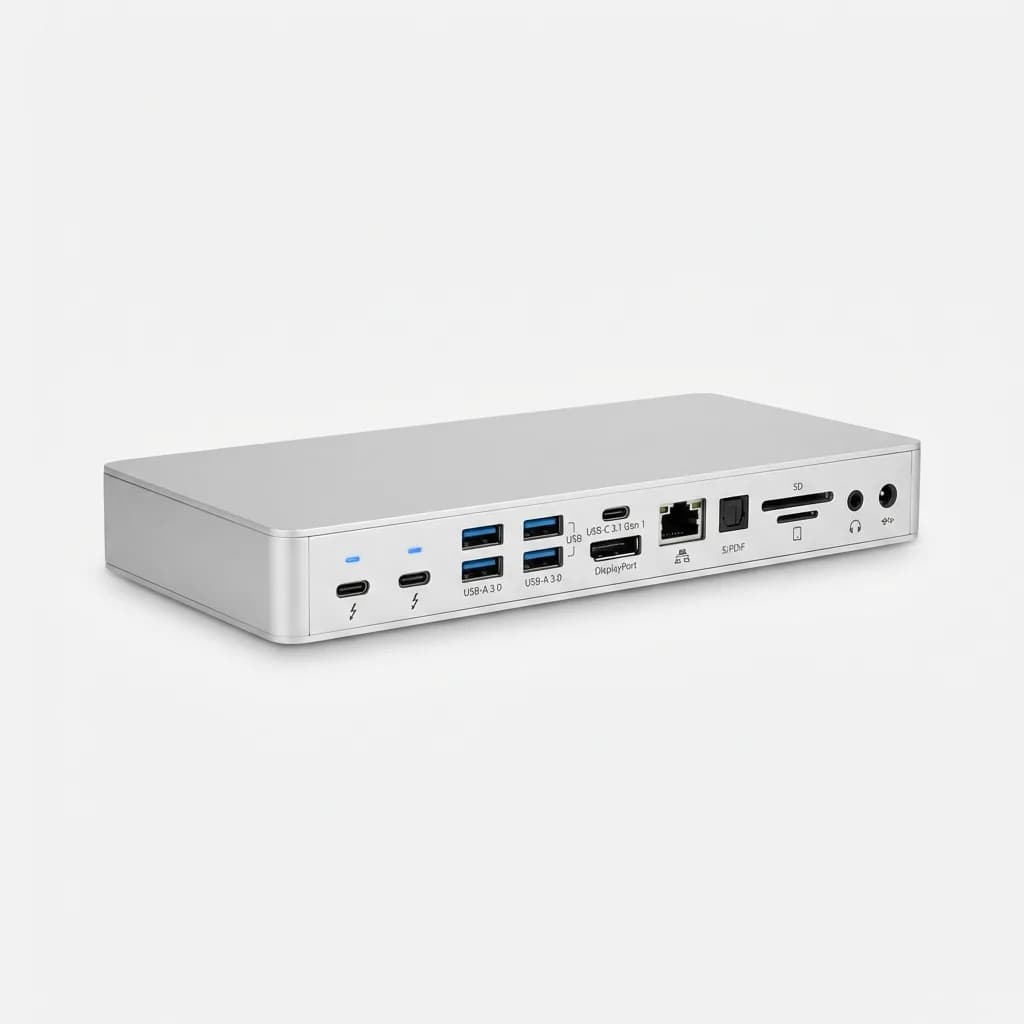
CalDigit TS3 Plus Thunderbolt 3 Dock
$270
15-port Thunderbolt 3 dock with 87W charging, dual 4K display support, five USB-A ports, optical audio, gigabit ethernet.
What About Monitor Arms and Cable Management?
Monitor arms free up desk space and add positioning flexibility. They mount to your desk edge and support displays up to 32 inches. You can adjust height, tilt, and rotation throughout the day. This matters more if you switch between sitting and standing.
Single monitor arms start around $100. Dual arms for side-by-side displays run $150-250. Spring-loaded gas arms allow effortless adjustment. Budget options use manual tension knobs that work fine but require tools to change positions.
Cable management prevents your desk from looking like a server room. Cable raceways hide power and data cables under your desk. Velcro straps bundle cables together. Cable clips route individual wires along desk edges. The effort takes an hour. The visual improvement lasts until you change your setup.
The Order That Makes Sense
Start with a laptop stand and external keyboard. These two items solve the biggest ergonomic problems for under $100 combined. Your neck and wrists will thank you within days.
Add a wireless mouse next. Trackpads work, but a proper mouse reduces hand fatigue during long sessions.
Get a USB hub when you run out of ports. This happens when you add an external monitor, keyboard receiver, and want to charge your phone.
Everything else - monitor arms, cable management, docking stations - improves your setup but doesn't fundamentally change how your body feels at end of day.
The goal isn't building the perfect desk setup. It's removing the physical barriers between you and productive work. Start with what hurts, fix that first, then optimize from there.
The Weekly Dispatch
Enjoying this article?
Subscribe and get our best gear picks delivered every Sunday morning.
Related Stories
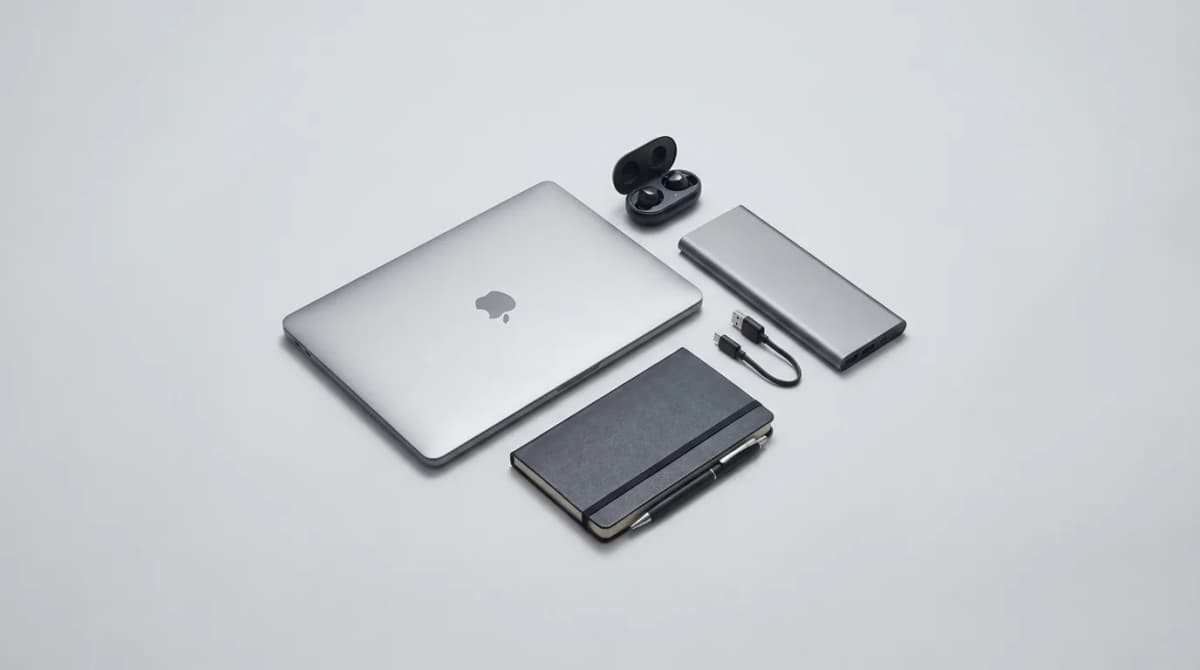
EDC for Remote Work Days at Cafes
Working from cafes requires different gear than your home office. Here's what actually matters when you're competing for outlets and dealing with noise.
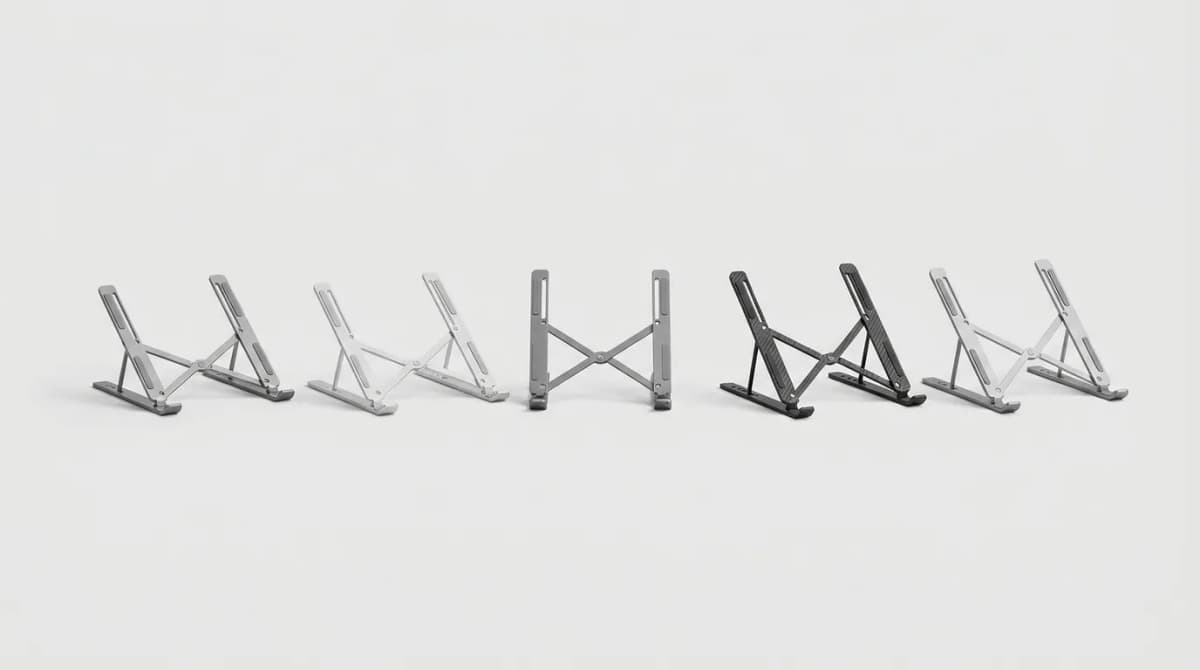
Best Portable Laptop Stands Under 1 Pound
Ultralight laptop stands that weigh less than 1 pound but still deliver stable ergonomic lift. We tested fold size, airflow, and real-world stability.
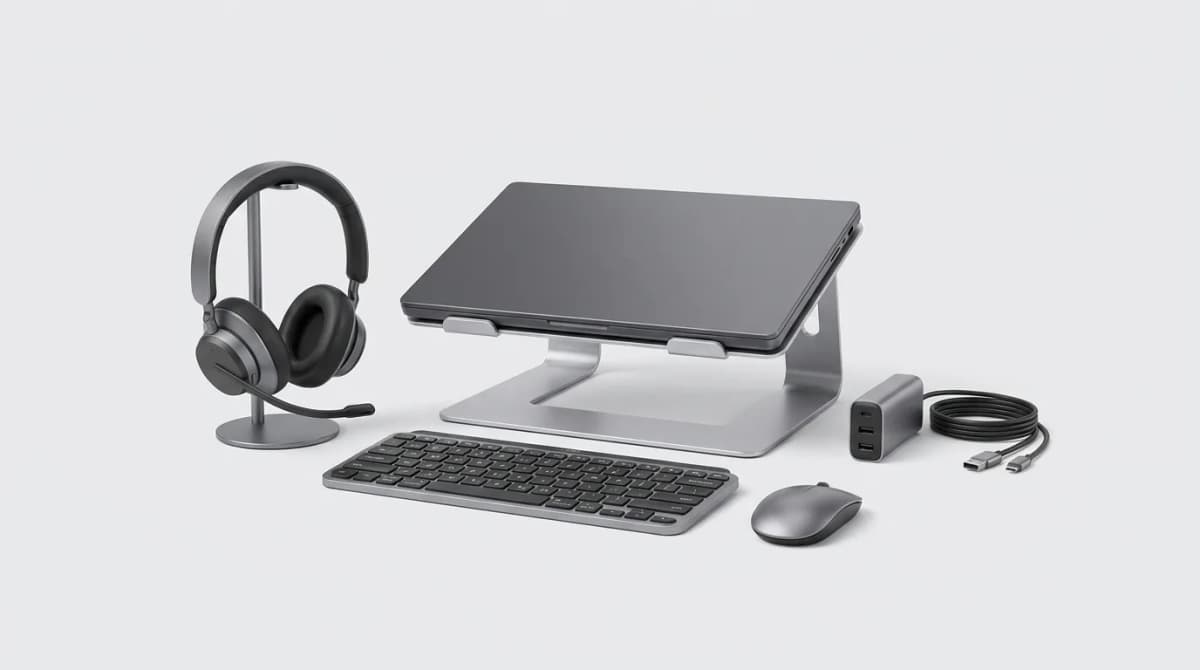
Best Work From Anywhere Kit Under 300 Dollars
Building a complete mobile work setup for under 300 dollars means choosing gear that pulls double duty and skipping the nice-to-haves that don't matter.